Photoshop-ish features in questfox Instant Report picture manipulation
Posted: 3. May 2015 Filed under: Uncategorized Leave a commentquestfox Instant Report now uses a small set of online picture manipulation tools.
Upload one of your pictures and right click the mouse to see the following menue
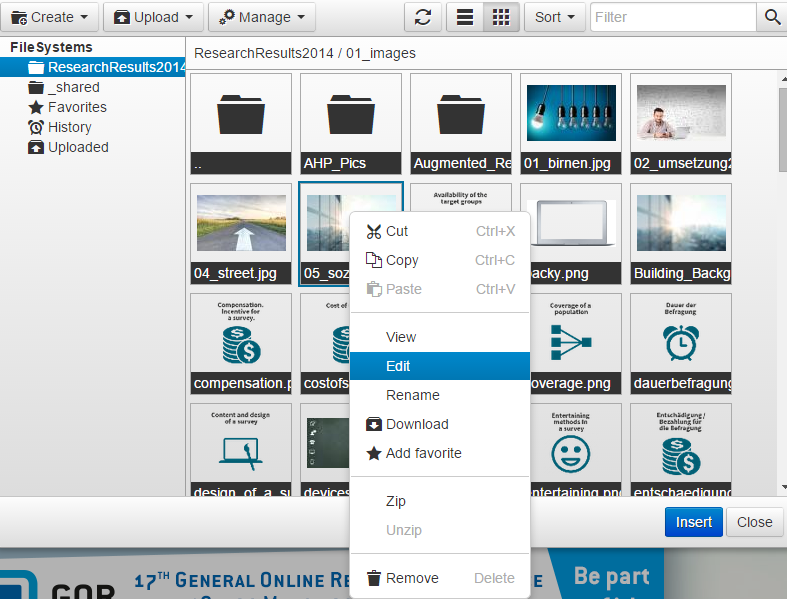
Clicking EDIT allows you to use a small set of manipulation features for the picture
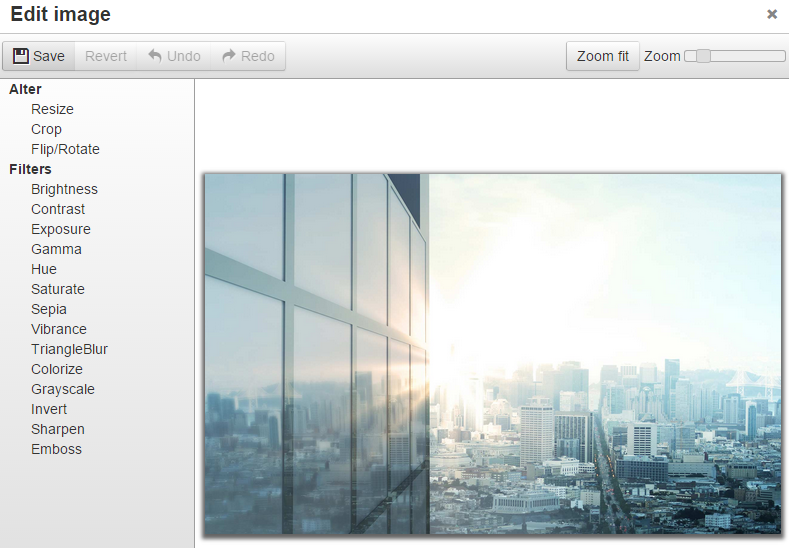
When pressing SAVE you can create a copy of your result in order not to destroy your initially uploaded picture.

Do not forget to press “Apply” once you found your perfect picture settings
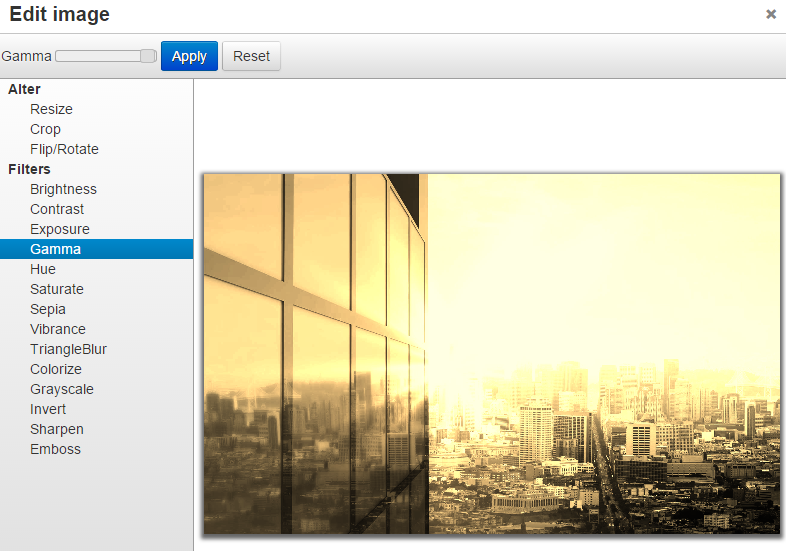
This feature should make your life easier and your reports much more beautiful.
Individual Background Pages for each Page in questfox Instant Report
Posted: 1. May 2015 Filed under: Uncategorized Leave a commentquestfox Instant Report now allows to use a different background picture inside every reporting page

You can either select a picture for ALL Instant Report pages or set it individually to every page.
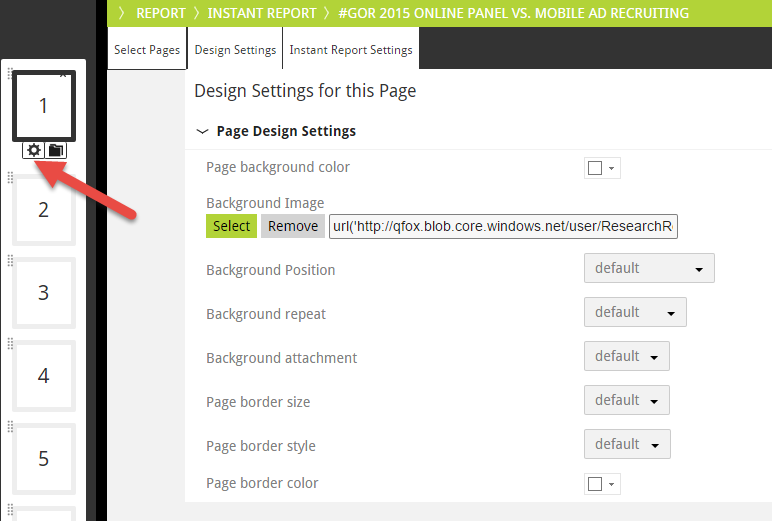
Also test the additional settings for the definition of your background picture. Looking forward to see more colorful reports in the pangea world.
Cross project reporting with questfox Instant Report
Posted: 30. April 2015 Filed under: Uncategorized Leave a commentFrom now on your questfox Instant Report can produce graphics based on different projects of your project space.
Just switch into different projects of your project space and create a chart based on your defined settings.
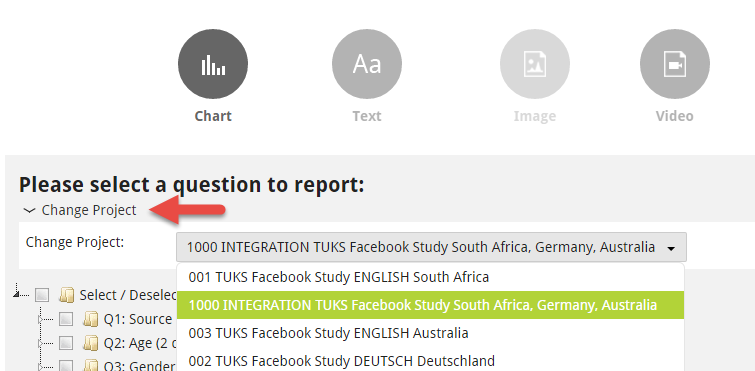
Inside this report you can now integrate all your different project’s graphics.
Design Changes in questfox Instant Report with a design wizard taking over defined formats onto other charts
Posted: 23. April 2015 Filed under: Uncategorized Leave a commentDid you ever create graphical templates that were not the best choice of your professional decision making? It then took hours or days to change this one stupid mistake that was spread across hundreds of graphics. With questfox Instant Report you can easily change ALL the design features with just a few mouse clicks.
1. Set one of the graphics to the target design that you want to use
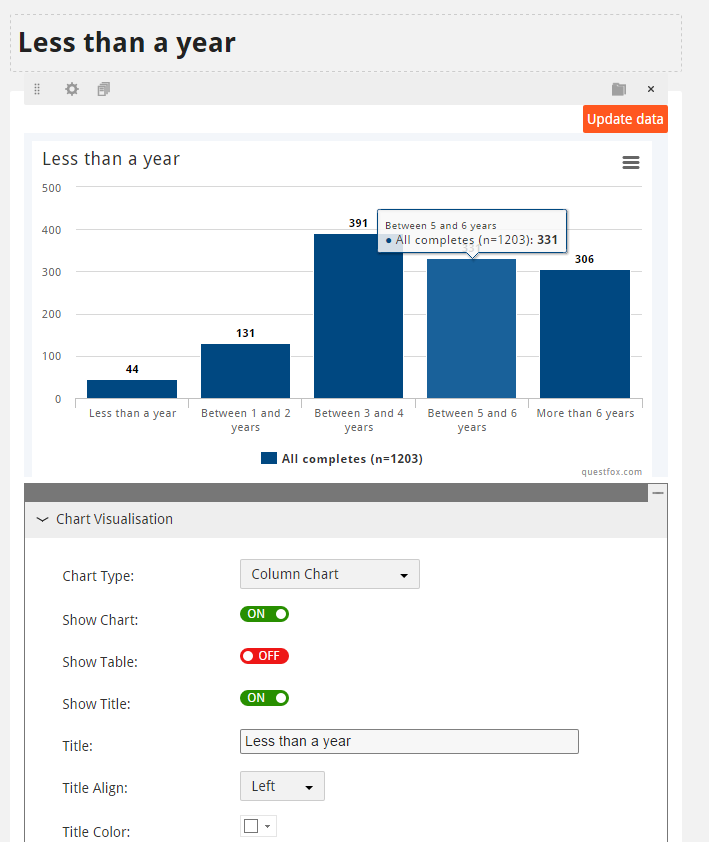
Change all the settings that you would like to see (and perhaps would like to see on different graphics too)
2. Click on “Paste Format to other Charts”
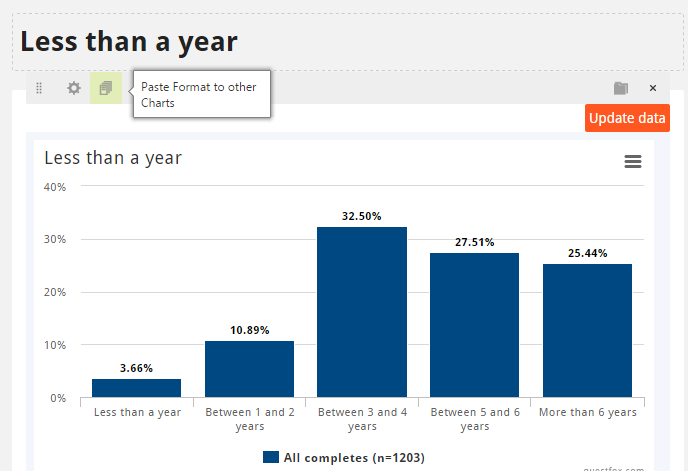
3. Select the format that you want to copy
You now have the option to choose all the design aspects that you would like to see copied from that template chart.

4. Select the design target graphics that should take over your design changes
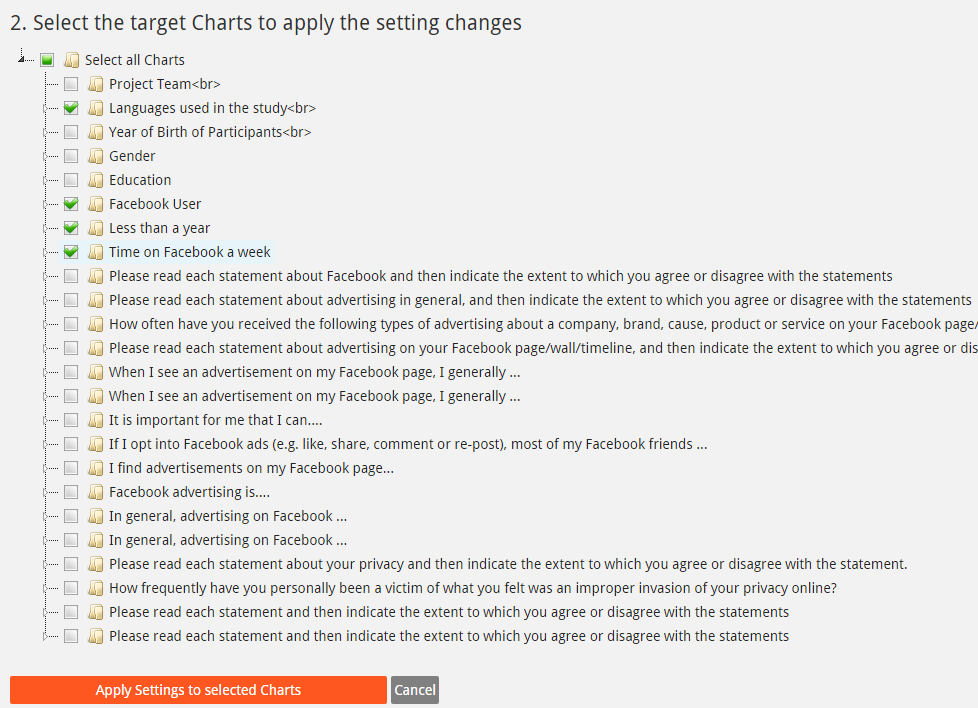
We are still about to test the effects of these marvelous features. We can already tell you: Be careful with those quick changes. Lucky you: You can also take them back in just seconds.
questfox Instant Report Wizard pushes Reporting to the next level
Posted: 16. April 2015 Filed under: Uncategorized Leave a commentAfter intensive tests with more than a hundred beta users, we are proud to announce another major development in the questfox Instant Report feature set. The questfox Instant Report Wizard allows to create entire reports within seconds.
Just select the questions you wish to report and select the split groups as defined in Report Groups. With one click you will receive an Instant Report opening a new Report Page for every question page.
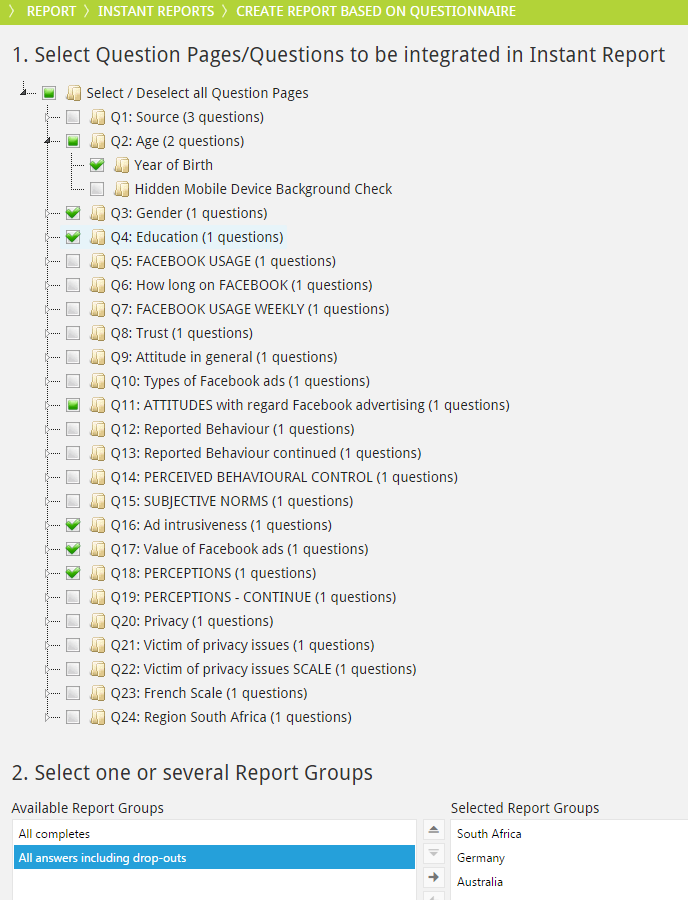
After the definition of the selected question pages / questions you can chose between some basic settings for the entire report. Do not forget to give a distinctive name to your report and press the “Run Instant Report Wizard” button.

The result will be a questfox Instant Report with all your graphics and tables. You can now still change everything according to your wishes.
Also new: Within a page it is now possible to add charts from all parts of the questionnaire into the desired page with a similar wizard. Also figure out the design template features which help you to set up the design for all pages and graphics of your questionnaire.
Have fun producing better reports.
questfox® Instant Report simplifies your market research life
Posted: 13. March 2015 Filed under: Uncategorized Leave a commentThe new reporting features of questfox® Instant Report are appreciated by the first set of users since their launch earlier this year. With only a small set of option you can reach the maximum effect in interactive report.
questfox® Instant Report allows you to
- Create a chart based on your collected data
- Implement small or huge amounts of texts in different CSS formats
- Integrate Pictures
- Integrate YouTube Videos in your report
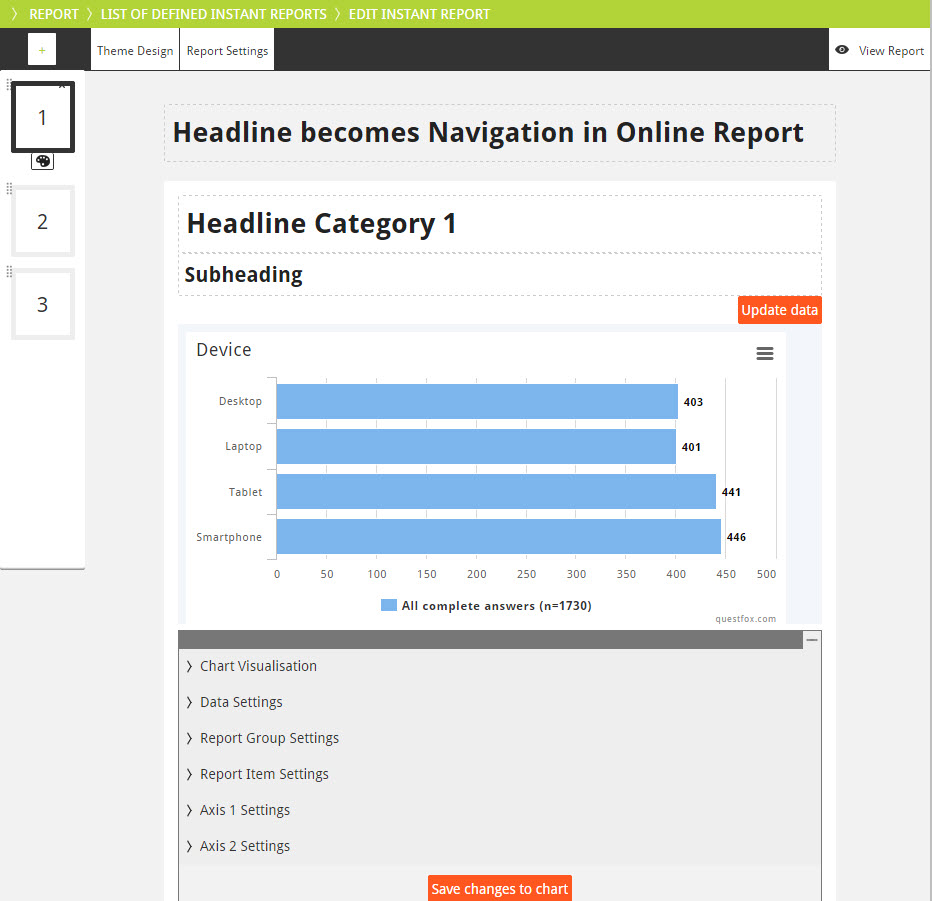
It is as simple as clicking your report together with an incredible amount of options to change the look of your report
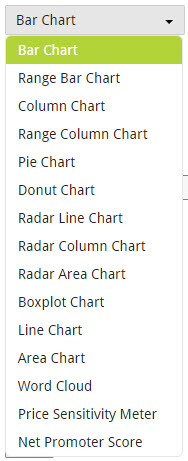
A set of graphic options is available which can easily compete with Excel’s functions of turning data into a graph.
Some of the graphics are set to a specific default representation but can later be changed into other forms. The follwoing options are available:
Add some structure and some content to your report and you have created an Instant Report which can be published online.

Have fun trying to create a questfox® Instant Report.
By the way: Why not create several reports for different target groups based on the same set of data? questfox Instant Report can support you with that kind of tasks with only a few clicks.
Example of a CSS Design for Background Picture of questfox Instant Report
Posted: 11. March 2015 Filed under: Uncategorized Leave a commentIt is possible to create a background picture to make the questfox Instant Report look more appealing:
Just include the following script in the Custom CSS under Theme Design in questfox Instant Report and you will see one background picture framing your report.
body {
background-image: url(“http://questfox.com/user//YOUR_FOLDER/YOUR_SUB_FOLDER/YOUR_FILE.jpg”);
margin:0px !important;
background-size:100%;
background-repeat:no-repeat;
background-position: bottom;
background-attachment:fixed;
background-color:black !important;
background-size:cover;
}
The result may look like this:
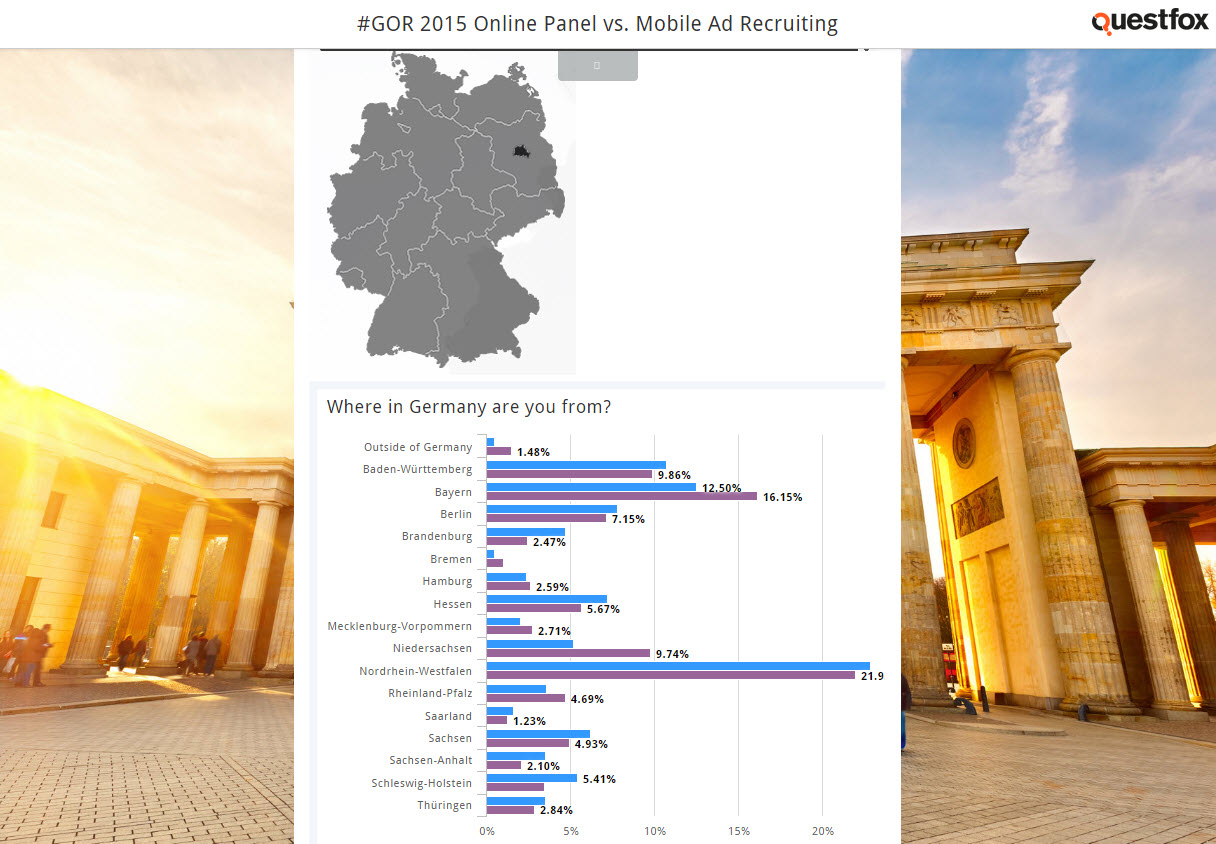
Example of a background picture using CSS with questfox.com
It is also possible to use a picture stored somewhere else. Please make sure that you are not in conflict with anyones copyright when using pictures inside questfox.com.
Live recode available in questfox SaaS market research tool
Posted: 8. March 2015 Filed under: Uncategorized Leave a commentThe developing team integrated a new powerful function to recode data inside of questfox. You can recode data while the survey is running into a different variable with a different value. Recoding is implemented in the calculation functions of questlogix.
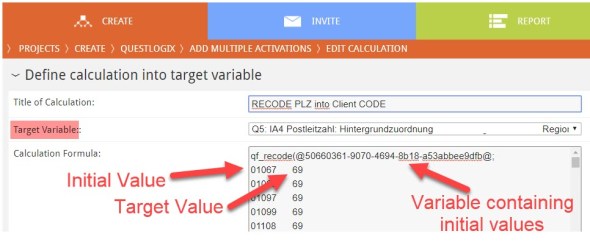
You need to select your target variable and use the special function qf_recode() with a variable where the data can be found with the idea of a key (which is normally entered by a participant) and a target value to fill your selected target variable.
Example: You want to recode special ZIP Codes into a category:
Define your Target Variable (preferrably an unused variable)
qf_recode(@YOUR_DATA_INPUT_VARIABLE@ ;
key1 value1
key2 value2
key3 value3
key4 value4
key5 value5 ;
defaultValue
)
A defined list can be very long. All answers not in list receive the default value (after the semicolon).
Be carefull when using this powerful recoding function.
Here is an example of how to use than function when recoding the example of a ZIP Code into a specific defined other categorization.
Interactive Map of Switzerland available in questfox.com
Posted: 2. March 2015 Filed under: Uncategorized Leave a commentAn interactive map of Switzerland is now available to all questfox users and their interviewees.
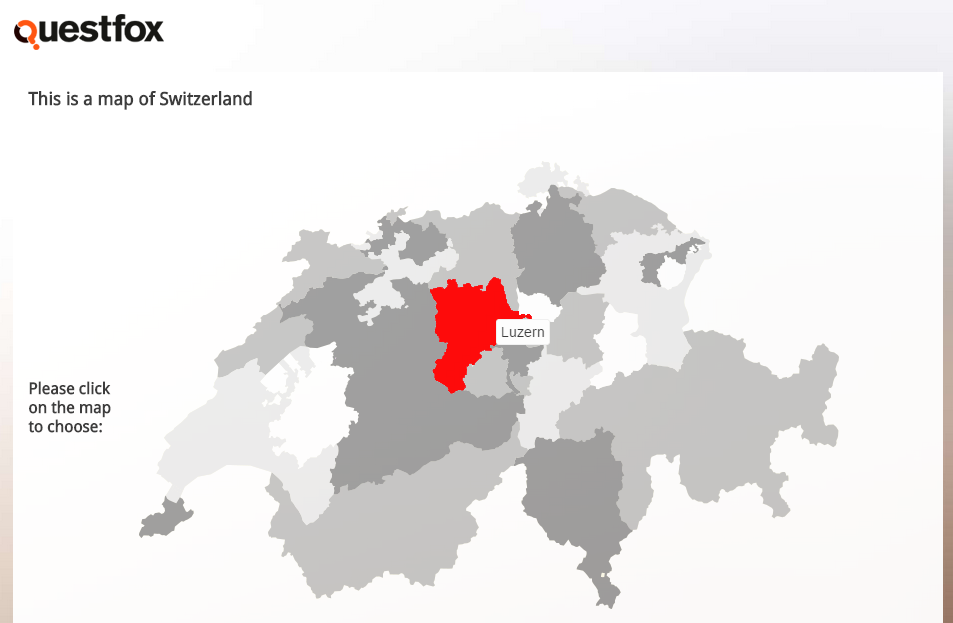
Integration is simple, as the map comes as one of the survey type questions in the SaaS-MR-Tool questfox.com in the category maps. The map works on all devices without any special requirements.

South Africa Map now available in SaaS survey tool questfox
Posted: 18. February 2015 Filed under: Uncategorized Leave a commentIn addition to the already existing Maps, questfox is now offering a graphical version of South Africa.
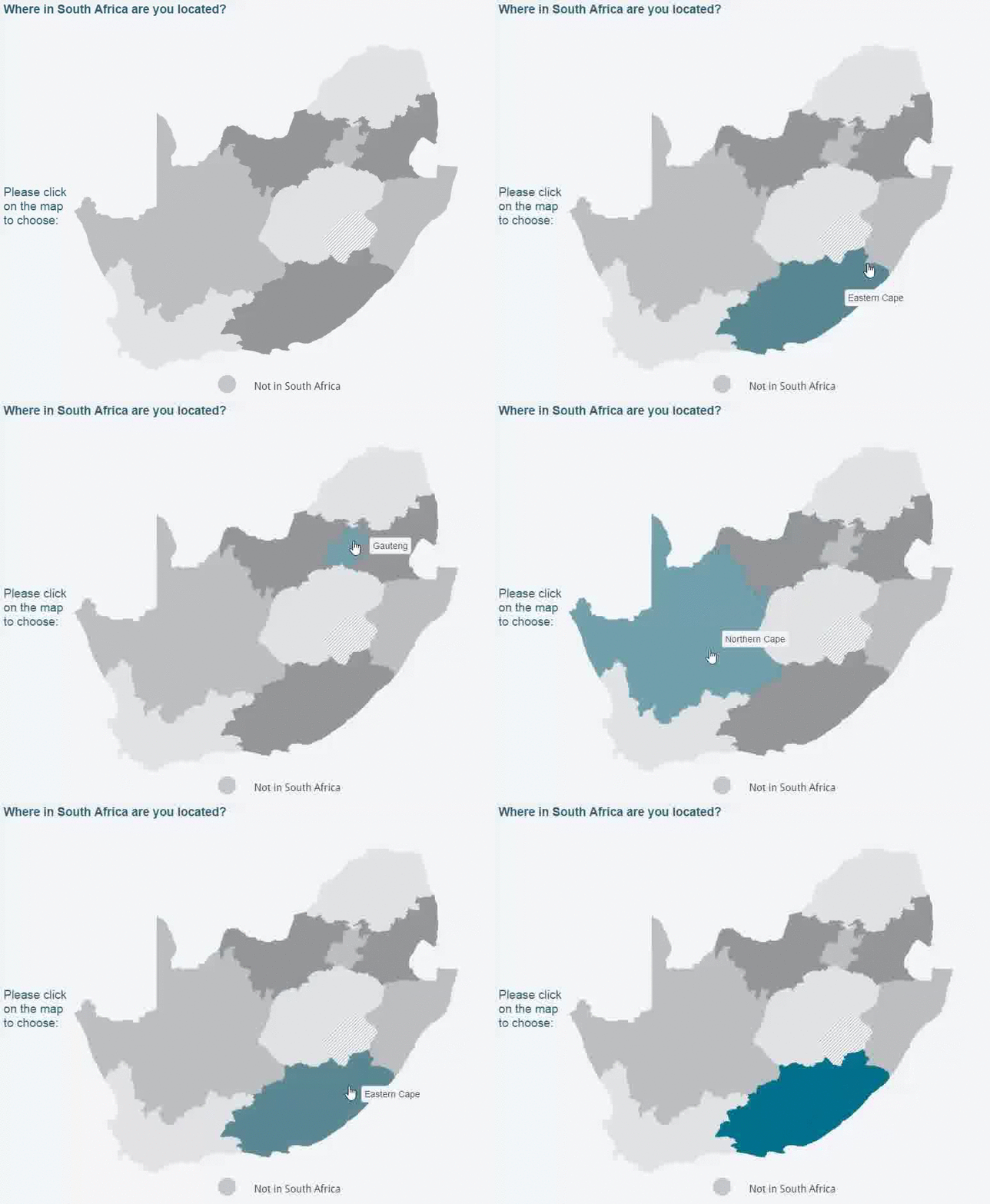
The map is available as a new question under maps
 questfox News
